In the world of AWS, IAM roles are a fundamental concept that you have to get right for your applications to function optimally. Roles give your AWS services the necessary permissions to access resources they need. But you can also assume roles yourself via the AWS Console or CLI to access AWS resources instantly.
In this comprehensive guide, you'll learn all four methods to assume IAM roles in AWS: from native Console and CLI approaches to productivity-enhancing tools like Granted. Whether you're switching roles for ad-hoc testing, automating deployments, or managing dozens of AWS accounts daily, you'll find the right method for your workflow.
On a day-to-day basis, I have to access dozens of different AWS accounts. Maintaining IAM users for each account is impossible, so I rely on IAM roles and AWS IAM Identity Center (formerly AWS SSO) to authenticate myself and access restricted resources. Let me show you how to do the same.
What is an IAM Role?
An IAM role is an AWS identity with specific permissions that is intended to be assumable by anyone who needs it, rather than being uniquely associated with one person. Unlike IAM users, roles don't have permanent long-term credentials. Instead, when you assume a role, AWS Security Token Service (STS) provides temporary security credentials for your session.
Roles can be assumed by:
- IAM users (within the same account or different accounts)
- IAM roles (role chaining)
- AWS service principals (EC2, Lambda, ECS, etc.) - see the complete searchable service principal reference
- External users authenticated by an identity provider (SAML, OIDC)
Here's a breakdown of what an IAM role consists of:
- Permissions Policy: Defines what actions are allowed or denied once the role is assumed
- Trust Policy: Specifies who (which AWS accounts, IAM users, or AWS services) can assume the role
- Use Cases: Delegating permissions, cross-account access, temporary elevated access, and more
IAM roles are a powerful tool to ensure that you're adhering to the principle of least privilege, granting only the permissions necessary to perform a task.
What is Assuming a Role?
Assuming a role is a process that enables you to take on the permissions of an IAM role temporarily. When you assume a role, you receive temporary security credentials that you can use to make AWS API requests.
Critical behavior to understand: When you assume a role, your original user permissions and the role's permissions are NOT cumulative. Only one set of permissions is active at a time. You temporarily give up your previous user permissions and work with the permissions assigned to the role. When you exit the role, your original permissions are automatically restored.
The following diagram illustrates the complete role assumption flow:
Here's how "Assume Role" works:
- Define the Role: Create an IAM role with the necessary permissions and a trust policy that specifies who can assume the role
- Assume the Role: Use AWS STS (Security Token Service) to assume the role via the Console, CLI, or SDK
- Receive Temporary Credentials: Once the role is assumed, you receive temporary security credentials that provide the permissions of the role
- Make API Requests: Use the temporary credentials to make AWS API requests
- Revert to Original Permissions: Once you're done or the credentials expire, you revert to your original permissions
The ability to assume roles is particularly useful for cross-account access, temporary elevated permissions, and delegating permissions to AWS services.
Trust Policies vs Permissions Policies
When you create a role, you create two distinct policies that work together. Understanding this distinction is crucial for troubleshooting role assumption issues.
Trust Policy (Assume Role Policy) defines WHO can assume the role. This is a resource-based policy attached to the role that specifies which principals are allowed to assume the role. The trust policy answers the question: "Who do you trust to assume this role?"
Permissions Policy (Identity-Based Policy) defines WHAT the role can do once assumed. This specifies which AWS resources and actions the role has access to. The permissions policy answers the question: "What can this role do?"
Both policies must be in place for role assumption to work. The trust policy acts as a gatekeeper: even if a user has sts:AssumeRole permission, they cannot assume the role unless the role's trust policy explicitly allows it.
Here's a simple trust policy that allows users from a specific account to assume the role:
{
  "Version": "2012-10-17",
  "Statement": [
    {
      "Effect": "Allow",
      "Principal": {
        "AWS": "arn:aws:iam::123456789012:root"
      },
      "Action": "sts:AssumeRole"
    }
  ]
}
This trust policy uses an account principal. For AWS services like Lambda or ECS to assume roles, you'd use service principals instead (e.g., lambda.amazonaws.com or ecs-tasks.amazonaws.com).
This policy allows any IAM principal in account 123456789012 to assume the role, provided they also have sts:AssumeRole permission in their own identity-based policy.
Prerequisites
Before you can assume IAM roles, you need to have a few things in place.
1. Install the AWS CLI
The AWS CLI allows you to interact with AWS services from your terminal. With Homebrew, install AWS CLI v2:
brew install awscli
For other operating systems, visit the AWS CLI installation guide.
Validate the installation by running aws --version:
aws-cli/2.32.26 Python/3.13.11 Darwin/25.1.0 source/arm64
2. IAM User or SSO User with Permissions
You need an IAM user or AWS IAM Identity Center (SSO) user with permission to assume roles. The user must have the sts:AssumeRole permission for the specific role ARN they want to assume.
Here's a minimal IAM policy to allow assuming a specific role:
{
  "Version": "2012-10-17",
  "Statement": [
    {
      "Effect": "Allow",
      "Action": "sts:AssumeRole",
      "Resource": "arn:aws:iam::123456789012:role/YourRoleName"
    }
  ]
}
For AWS IAM Identity Center setup, check out my guide on how to set up AWS CLI with AWS IAM Identity Center.
3. IAM Role with Trust Policy
You need an IAM role with a properly configured trust policy. Let me walk you through creating one.
In the IAM console, navigate to 'Roles' and choose 'Create role'. Select 'Custom trust policy' and enter a trust policy. Here's an example that trusts your entire account:
{
  "Version": "2012-10-17",
  "Statement": [
    {
      "Effect": "Allow",
      "Principal": {
        "AWS": "arn:aws:iam::YOUR_ACCOUNT_ID:root"
      },
      "Action": "sts:AssumeRole"
    }
  ]
}
For better security, specify a particular user instead of the entire account:
{
  "Version": "2012-10-17",
  "Statement": [
    {
      "Effect": "Allow",
      "Principal": {
        "AWS": "arn:aws:iam::YOUR_ACCOUNT_ID:user/YourUsername"
      },
      "Action": "sts:AssumeRole"
    }
  ]
}
After configuring the trust policy, attach a permissions policy to define what the role can do, give it a name, and create the role.
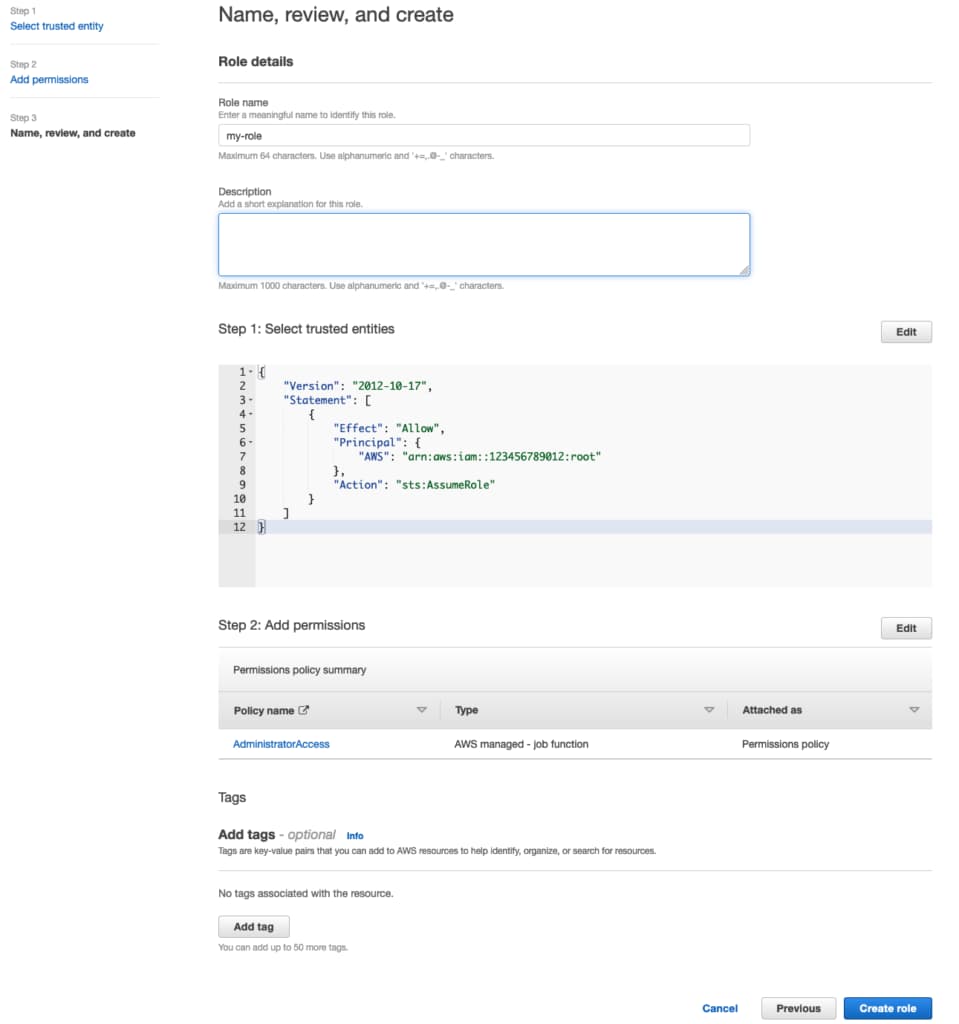
Now let's explore the four methods to assume this role.
Method 1: Assume a Role Using AWS Console
The AWS Console provides the simplest way to assume a role for ad-hoc testing and manual operations. No CLI setup required, just a few clicks in your browser.
When you switch roles in the Console, you temporarily set aside your original user permissions and assume the permissions assigned to the IAM role. Console role sessions last 1 hour (or the remaining time in your IAM user session, whichever is less).
Step-by-Step Console Role Switching
- Sign in to the AWS Management Console as an IAM user
- In the navigation bar (upper right), click on your username
- Select Switch Role (or Add session followed by Switch role if using multi-session support)
- On the Switch Role page, enter:
- Account: Account ID (12 digits) or account alias of the account that owns the role
- Role: Name of the role to assume
- Display Name (optional): Friendly name to show in the navigation bar
- Color (optional): Color to highlight the role in the navigation bar
- Click Switch Role
The display name and color appear in the navigation bar, helping you identify when the role is active. This visual indicator is particularly helpful when working across multiple accounts.
Returning to Original Permissions
To stop using the role and return to your original permissions:
- Click the role display name in the navigation bar
- Select Switch back
Your original IAM user permissions are immediately restored.
Console Session Duration Limits
The actual session duration when switching roles in the Console is determined by the lesser of:
- The role's maximum session duration setting (1-12 hours, default 1 hour)
- The remaining time in your IAM user session
For example, if the role's max session duration is 10 hours but your user session only has 4 hours remaining, your role session will be 4 hours.
Using Role History for Quick Access
The Console saves the last several roles you've used. They appear in the dropdown menu for quick access without re-entering account and role information. This is a huge time-saver when you frequently switch between the same set of roles.
Note: Console role switching does not support roles that require an External ID. For those scenarios, you must use the CLI or SDK.
Method 2: Assume a Role Using AWS CLI (Profile Method)
The profile method is my recommended approach for daily AWS CLI work. Instead of manually calling assume-role and exporting credentials, you configure the AWS CLI to automatically assume roles using profiles in ~/.aws/config.
This method handles credential refresh automatically, making it perfect for interactive CLI sessions.
Configure AWS Profile for Role Assumption
First, ensure you have a base profile with credentials. This could be an IAM user profile in ~/.aws/credentials:
[my-user]
aws_access_key_id = YOUR_ACCESS_KEY
aws_secret_access_key = YOUR_SECRET_KEY
Or an SSO profile configured via aws configure sso.
Then add a role profile in ~/.aws/config:
[profile my-role]
role_arn = arn:aws:iam::123456789012:role/YourRoleName
source_profile = my-user
region = us-east-1
Now you can use this profile with any AWS CLI command:
aws s3 ls --profile my-role
The CLI automatically calls AssumeRole using the credentials from source_profile and uses the returned temporary credentials. No manual credential management required.
For details on switching between AWS CLI profiles, including environment variables and default profile configuration, check out my dedicated guide.
Profile with MFA Configuration
For roles that require MFA, add the mfa_serial parameter:
[profile secure-role]
role_arn = arn:aws:iam::123456789012:role/SecureRole
source_profile = my-user
mfa_serial = arn:aws:iam::123456789012:mfa/YourUsername
region = us-east-1
When you use this profile, the CLI automatically prompts for your MFA token code:
aws s3 ls --profile secure-role
# Prompts: Enter MFA code for arn:aws:iam::123456789012:mfa/YourUsername:
Cross-Account Profile Configuration
For cross-account access, simply specify the role ARN from the target account:
[profile production-access]
role_arn = arn:aws:iam::PRODUCTION_ACCOUNT_ID:role/ProductionAccessRole
source_profile = my-user
region = us-east-1
If the role requires an External ID (common for third-party access), add it:
[profile vendor-access]
role_arn = arn:aws:iam::VENDOR_ACCOUNT_ID:role/VendorRole
source_profile = my-user
external_id = unique-external-id-from-vendor
region = us-east-1
You can also configure custom session duration (must be within the role's allowed range):
[profile long-session]
role_arn = arn:aws:iam::123456789012:role/RoleName
source_profile = my-user
duration_seconds = 7200
region = us-east-1
Method 3: Assume a Role Using AWS CLI (Direct STS Command)
The direct aws sts assume-role command gives you full control over role assumption. This method is ideal for automation, scripting, and scenarios where you need to pass the credentials to another tool or process.
Basic AssumeRole Command
The basic command to assume a role:
aws sts assume-role \
  --role-arn arn:aws:iam::123456789012:role/RoleName \
  --role-session-name my-session
This returns JSON output containing the temporary credentials:
{
  "Credentials": {
    "AccessKeyId": "ASIAQE7WYRKTKQ55ZTU2",
    "SecretAccessKey": "wJalrXUtnFEMI/K7MDENG/bPxRfiCYEXAMPLEKEY",
    "SessionToken": "FwoGZXIvYXdzEBYaD...",
    "Expiration": "2025-01-01T12:00:00Z"
  },
  "AssumedRoleUser": {
    "AssumedRoleId": "AROA123456789EXAMPLE:my-session",
    "Arn": "arn:aws:sts::123456789012:assumed-role/RoleName/my-session"
  }
}
AssumeRole with MFA
When the role's trust policy requires MFA, provide the MFA device serial number and current token code:
aws sts assume-role \
  --role-arn arn:aws:iam::123456789012:role/SecureRole \
  --role-session-name mfa-session \
  --serial-number arn:aws:iam::123456789012:mfa/YourUsername \
  --token-code 123456
AssumeRole with External ID
For third-party access scenarios that require an External ID to prevent the confused deputy problem:
aws sts assume-role \
  --role-arn arn:aws:iam::123456789012:role/ThirdPartyRole \
  --role-session-name vendor-session \
  --external-id unique-external-id-string
AssumeRole with Custom Duration
Specify session duration (900 to 43200 seconds, depending on role configuration):
aws sts assume-role \
  --role-arn arn:aws:iam::123456789012:role/RoleName \
  --role-session-name long-session \
  --duration-seconds 7200
Manually Exporting Temporary Credentials
After receiving credentials from assume-role, you must export them as environment variables for subsequent commands to use:
export AWS_ACCESS_KEY_ID="ASIAQE7WYRKTKQ55ZTU2"
export AWS_SECRET_ACCESS_KEY="wJalrXUtnFEMI/K7MDENG/bPxRfiCYEXAMPLEKEY"
export AWS_SESSION_TOKEN="FwoGZXIvYXdzEBYaD..."
You can automate this with a script. Here's a one-liner that assumes a role and exports the credentials:
eval $(aws sts assume-role \
  --role-arn arn:aws:iam::123456789012:role/RoleName \
  --role-session-name my-session \
  --query 'Credentials.[AccessKeyId,SecretAccessKey,SessionToken]' \
  --output text | awk '{print "export AWS_ACCESS_KEY_ID="$1" AWS_SECRET_ACCESS_KEY="$2" AWS_SESSION_TOKEN="$3}')
For more robust cross-account scripting, see my guide on creating an AWS cross-account assume role script.
Validating Assumed Role Session
After assuming a role, verify your identity with:
aws sts get-caller-identity
Output:
{
  "UserId": "AROAUNK7YPUGD5AUMRR6S:my-session",
  "Account": "123456789012",
  "Arn": "arn:aws:sts::123456789012:assumed-role/RoleName/my-session"
}
The ARN format assumed-role/RoleName/session-name confirms you're operating with the assumed role's permissions. For more ways to verify your active IAM identity, check out my dedicated guide.
Method 4: Assume a Role Using Granted CLI (Simplified Workflow)
Now that you understand the native methods, let me introduce Granted, an open-source tool that dramatically simplifies the workflow. This is what I use daily when managing dozens of AWS accounts.
Granted handles all the complexity of assuming roles and exporting credentials with a single command:
assume <aws-profile-name>
Install Granted CLI
The Granted CLI is developed by Common-Fate. Install it with Homebrew on macOS:
brew tap common-fate/granted
brew install granted
Verify the installation:
granted --version
For installation on Linux and Windows, check the official documentation.
Assume Role with Granted
Once you have profiles configured in ~/.aws/config (as shown in Method 2), assuming a role is trivial:
➜ assume my-role
[✔] [my-role](us-east-1) session credentials will expire in 1 hour
Verify your assumed role:
~ on  my-role (us-east-1) [32m50s]
➜ aws sts get-caller-identity
{
    "UserId": "AROAUNK7YPUGD5AUMRR6S:dannysteenman",
    "Account": "0123456789012",
    "Arn": "arn:aws:sts::0123456789012:assumed-role/AWSReservedSSO_AdministratorAccess_a9c7ffeeffd4bea4/dannysteenman"
}
Open AWS Console with Granted
What makes Granted special is that it can also open a session in the AWS Console browser:
➜ assume my-role --console
[i] use -s to open a specific service ( https://docs.commonfate.io/granted/usage/console )
[i] Opening a console for my-role in your browser...
This opens the AWS Console automatically in your default browser, already authenticated with the assumed role. No more manually switching roles in the Console.
Automatic Credential Export
A big benefit of using Granted is that it automatically exports the values of AccessKeyId, SecretAccessKey, and SessionToken when you assume a role.
After assuming, use env | grep AWS to see the exported variables:
➜ env|grep AWS
AWS_ACCESS_KEY_ID=ASIAQE7WYRKTKQ55ZTU2
AWS_SECRET_ACCESS_KEY=mu9LfNc3t9VuaB15MdTALPCbQrxAmxMPT+Evpp6g
AWS_SESSION_TOKEN=IQoJb3JpZ2luX2VjEID//////////wEaDGV1LWNlbnRyYWwtMSJHMEUCIQCMU0n8yaLZfKMC5F0FvZDfIsK0VmjQSvQ6PNeaZbjqSgIgWwTBLq5qb3fxtREkkGz42frTj/je5DIy2B3N7idEX00qrQIIKRAAGgwwMTA3MTM5OTU5MzciDCthegqx+mfPzN/koiqKAjUJa4H5iwUgfHeVDbOGxKFuqtW4Ns1n/V5a7tESqcdAOOaRF/zTm6VYwJGYBxeEjbM3d08ueuv+L6pIv16ZkHzz3WafdulnIKAWEO9sgm9N1XynEi4WiApQ5n9scaTwWJO0x1W6DosmFiYNYrwl4EPWtDRs+AlFmiclML3ksqYGOp0BHPL5EY4LxCGL5H++svj6UaBsQVaaB1bIjAYjYLbPufZIVQ0PLldpvPGENsRKFsoX0MN7Iew8N42jGwU5YWvEIF77jtSUQUzQ/OhJDB8JTxP+46/UJgyrcU/8KzIWadkHsgjOyDEg2MKSg0ToGAfkk4VD4US/yv0c/wI630E23DGtDmqt+4Xo55qaC4rODhNFql6MkNI0joCN66bbulIysbvxFIV/8wOhkWReTuUKg5rs2fSfVRiZNh/90YtLMhmmvLgb/GjeWua5fJ8aPqU6IcgGrWaDx0iSji4PJ132uvlJHWjgOCurr5kJuOkL+AtjT9LQNNhiKIkiDPBNzs4Dzc3cOCUI0YDsACVbXBGr/FIrUTlR/Fs7aymwI2O4Zv1AqYaGm1w2XhP6Aqx2Sg==
AWS_PROFILE=my-role
AWS_REGION=us-east-1
AWS_DEFAULT_REGION=us-east-1
AWS_SESSION_EXPIRATION=2026-01-02T04:49:06+01:00
AWS_CREDENTIAL_EXPIRATION=2026-01-02T04:49:06+01:00
These environment variables are useful for development tools such as AWS CDK, AWS SAM, and Terraform, allowing you to deploy from the session you assumed in your terminal.
Which Method Should You Use?
With four methods available, choosing the right one depends on your use case. Here's a decision matrix to help:
| Method | Best For | Session Duration | Pros | Cons |
|---|---|---|---|---|
| Console | Ad-hoc testing, manual operations | 1 hour (fixed) | No setup required, visual interface | Limited duration, no automation |
| CLI Profile | Daily interactive CLI work | 1-12 hours (configurable) | Auto-refresh, simple syntax, supports MFA | Requires profile setup |
| Direct STS | Automation, scripting, CI/CD | 15 min - 12 hours | Full control, scriptable | Manual credential management |
| Granted | Productivity, multi-account work | 1-12 hours | Best UX, Console opening, auto-export | Third-party dependency |
My recommendation: Start with Method 2 (CLI Profile) for daily work. It's native to AWS, requires no additional tools, and handles credential refresh automatically. Add Granted when you're managing multiple accounts daily and want the productivity boost of assume --console.
For CI/CD pipelines and automation, use Method 3 (Direct STS) for explicit control, or configure OIDC federation to avoid long-term credentials entirely.
Understanding Session Duration and Limits
Session duration is often a source of confusion. Here's what you need to know about how long your assumed role sessions last.
Maximum Session Duration Settings
Each IAM role has a MaxSessionDuration setting that determines the maximum allowed duration:
- Configurable range: 1 hour (3600 seconds) to 12 hours (43200 seconds)
- Default: 1 hour
- Where to configure: IAM console Role settings, or via CLI with
aws iam update-role --max-session-duration
Duration Limits by Method
| Method | Minimum | Maximum | Default |
|---|---|---|---|
| AssumeRole (CLI/API) | 15 min | Role's MaxSessionDuration (up to 12h) | 1 hour |
| Role chaining | 15 min | 1 hour (fixed) | 1 hour |
| Console role switching | N/A | 1 hour or remaining user session | 1 hour |
Critical limitation: Role chaining (using assumed role credentials to assume another role) is limited to a maximum of 1 hour, regardless of any configuration. This cannot be extended.
Checking Credential Expiration
To see when your current credentials expire:
echo $AWS_CREDENTIAL_EXPIRATION
# Or check the Expiration field from assume-role output
Once credentials expire, you must assume the role again to get fresh credentials.
Troubleshooting Role Assumption Issues
Here are the most common errors you'll encounter and how to fix them.
Error: User Not Authorized to Perform sts:AssumeRole
Symptom:
An error occurred (AccessDenied) when calling the AssumeRole operation: User: arn:aws:iam::111111111111:user/USERNAME is not authorized to perform: sts:AssumeRole on resource: arn:aws:iam::222222222222:role/ROLENAME
Causes and Solutions:
-
Missing sts:AssumeRole permission: The user's IAM policy doesn't allow assuming this role
- Fix: Attach a policy granting
sts:AssumeRolefor the specific role ARN
- Fix: Attach a policy granting
-
Trust policy doesn't allow the user: The role's trust policy doesn't include the user's account or ARN
- Fix: Update the role's trust policy to include the user or account
-
Restrictive conditions not met: Trust policy conditions (MFA, IP range, etc.) not satisfied
- Fix: Provide MFA credentials, ensure you're on an allowed IP, etc.
Error: Access Denied After Assuming Role
Symptom: Successfully assumed role but cannot perform expected actions.
Causes:
-
Role permissions policy insufficient: The role doesn't have the required permissions
- Fix: Update the role's permissions policy
-
Session policy restricting access: A session policy was passed that limits permissions
- Fix: Remove or adjust the session policy
-
SCP restriction: An Organization Service Control Policy is blocking the action
- Fix: Review and adjust applicable SCPs
-
Resource policy denying access: The target resource has a policy explicitly denying the role
- Fix: Review resource-based policies for deny statements
Error: MFA Token Rejected
Symptom:
An error occurred (AccessDenied) when calling the AssumeRole operation: MultiFactorAuthentication failed with invalid MFA one time pass code
Solutions:
- Wrong token code: Code has expired or was mistyped. Use a fresh 6-digit code
- Wrong serial number: Verify the MFA device ARN matches your registered device
- Time drift: Your authenticator app's clock is out of sync. Ensure device time is correct (NTP)
- MFA device not registered: The device isn't properly associated with your user. Re-register in IAM console
Error: Session Expired
Symptom:
An error occurred (ExpiredTokenException) when calling the [Operation] operation: The security token included in the request is expired
Solution: Assume the role again to get fresh credentials. For long-running processes, implement credential refresh logic before expiration or use shorter session durations with more frequent refresh.
Cross-Account Access Troubleshooting Checklist
When cross-account role assumption fails, verify all of these:
- Role in target account has trust policy allowing your account
- Trust policy Principal includes your account ID or specific user ARN
- Your user in source account has
sts:AssumeRolepermission for the target role - No SCPs blocking the action in either account
- External ID matches (if required by trust policy)
- MFA provided (if required by trust policy)
- All trust policy conditions are satisfied
Security Best Practices for Role Assumption
Following these best practices will help you maintain a secure role assumption strategy.
Require MFA for Sensitive Roles
For roles that access sensitive resources or perform privileged operations, enforce MFA in the trust policy:
{
  "Version": "2012-10-17",
  "Statement": [
    {
      "Effect": "Allow",
      "Principal": {
        "AWS": "arn:aws:iam::123456789012:root"
      },
      "Action": "sts:AssumeRole",
      "Condition": {
        "Bool": {
          "aws:MultiFactorAuthPresent": "true"
        }
      }
    }
  ]
}
Pro tip: Use FIDO security keys over TOTP-based MFA. They're more phishing-resistant and provide stronger security guarantees.
Use Specific Trust Policies
Be as specific as possible about who can assume roles. Instead of trusting an entire account:
"Principal": {"AWS": "arn:aws:iam::123456789012:root"}
Trust specific users or roles:
"Principal": {"AWS": "arn:aws:iam::123456789012:user/specific-user"}
For cross-account access in multi-account architectures, combine specific principals with External ID conditions to prevent confused deputy attacks. For CI/CD pipelines, use OIDC with WebIdentityPrincipal to eliminate long-lived credentials entirely.
Set Appropriate Session Durations
Use the shortest session duration that meets operational needs:
- Interactive sessions: 1-2 hours
- Automated processes: Match the expected runtime
- Long-running tasks: Consider service roles or instance profiles instead
Shorter durations reduce the window of exposure if credentials are compromised.
Monitor Role Usage with CloudTrail
Actively monitor role assumption and usage. Key things to watch:
- Who is assuming roles (track
AssumeRoleevents) - Failed assume role attempts (potential unauthorized access)
- Cross-account role assumptions
- Actions performed with assumed roles
Consider using AWS delegated administrators to centralize security monitoring across your organization.
Protect Against Confused Deputy
For cross-account and third-party access, use External IDs to prevent one customer from accessing another customer's resources:
{
  "Condition": {
    "StringEquals": {
      "sts:ExternalId": "unique-customer-id-12345"
    }
  }
}
The third party should generate unique External IDs for each customer. Never accept External IDs that customers provide themselves.
Conclusion
Assuming an IAM role in AWS is a fundamental skill for anyone working with AWS. You now have four methods in your toolkit:
- Console role switching: Perfect for ad-hoc testing with minimal setup
- CLI profile method: Best for daily interactive work with automatic credential refresh
- Direct STS command: Ideal for automation and scripting with full control
- Granted CLI: Maximum productivity for multi-account workflows
The right method depends on your use case. For most day-to-day work, I recommend the CLI profile method (Method 2) for its balance of simplicity and native AWS support. Add Granted when you're managing many accounts and want the productivity boost.
Remember these key principles:
- Trust policies define WHO can assume, permissions policies define WHAT roles can do
- Assumed role permissions replace your original permissions (they're not cumulative)
- MFA enforcement in trust policies significantly improves security
- Role chaining is limited to 1 hour regardless of configuration
I'd love to hear which method works best for your workflow. Drop a comment below with your experience or any questions about role assumption scenarios I didn't cover.
Next step